Advanced mode: gear, Relics and Champion Pools
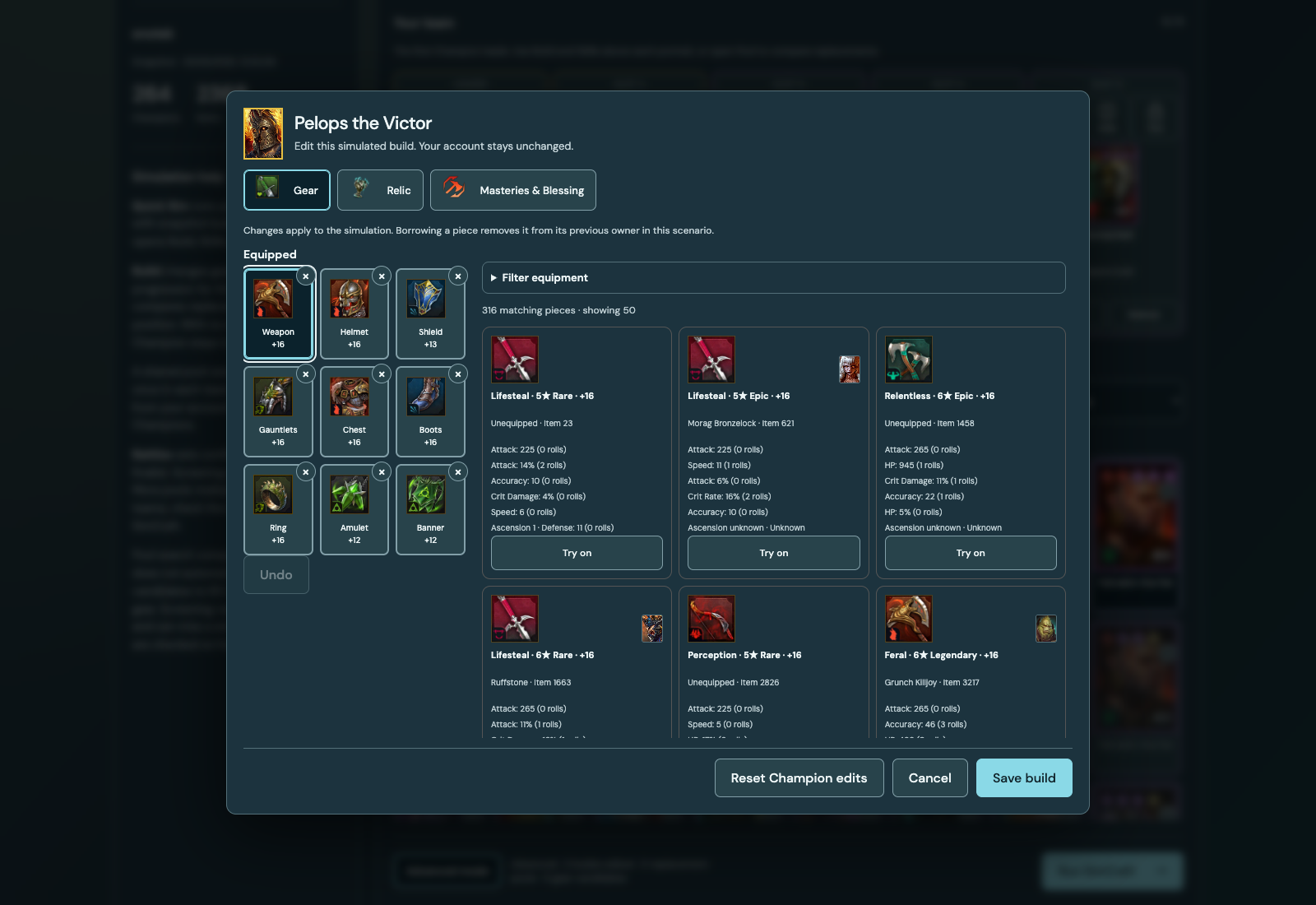
Quick Sim keeps the familiar team setup. Advanced mode opens the tools for comparing builds and replacements, with one Run SimCraft button for the whole calculation.
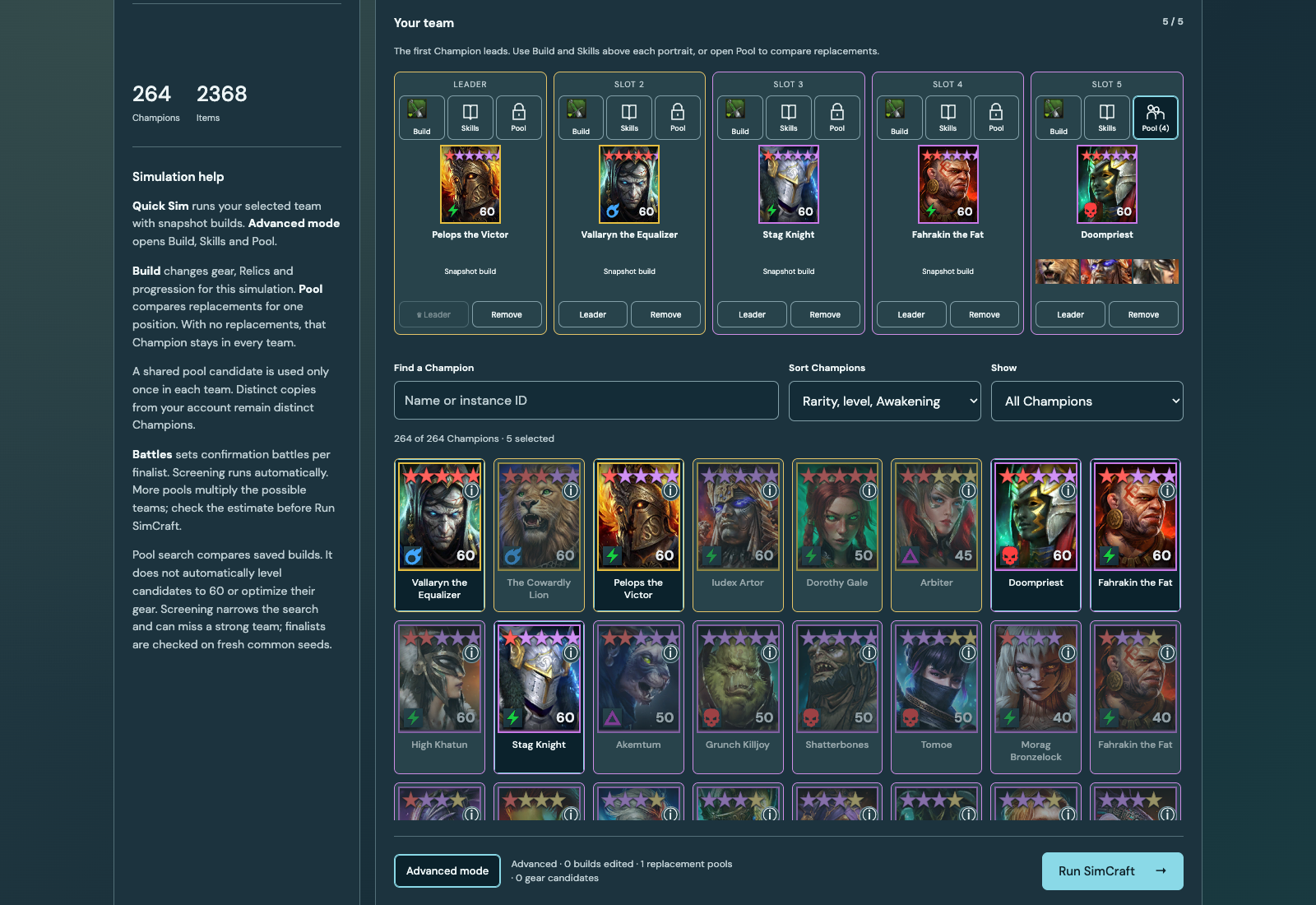
Try your account gear
Open Build → Gear above a Champion. The Fitting Room follows the game’s 3×3 layout: Weapon, Helmet, Shield; Gauntlets, Chest, Boots; Ring, Amulet, Banner. Filter by Set, Rank, Rarity, Level, owner or stats, then choose a piece.
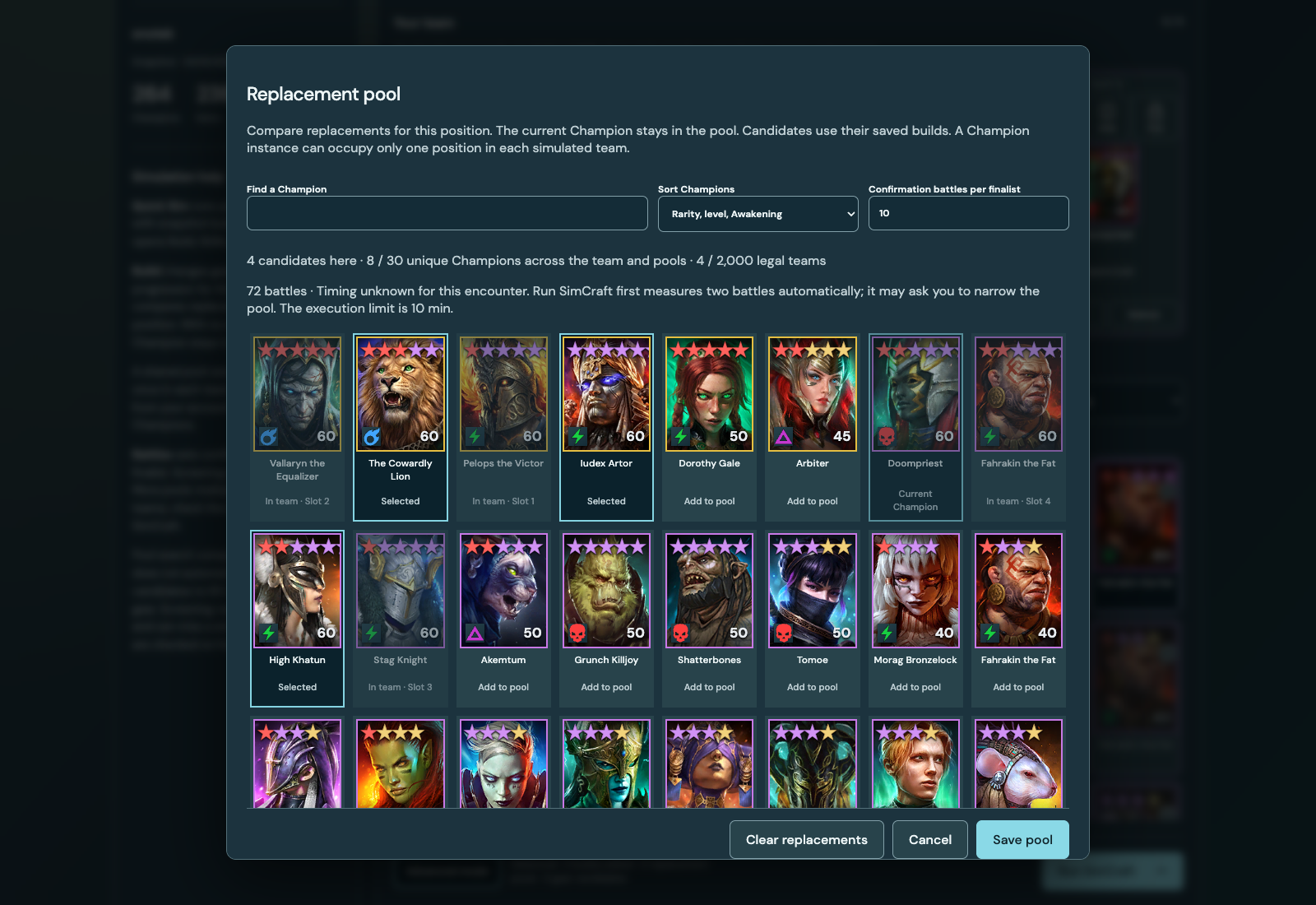
Compare replacement Champions
Open Pool above the position you want to test. The current Champion remains a candidate. Add alternatives and save the pool; leave the other positions fixed. The cards show Level, Ascension and Awakening, with the same sorting as the roster.
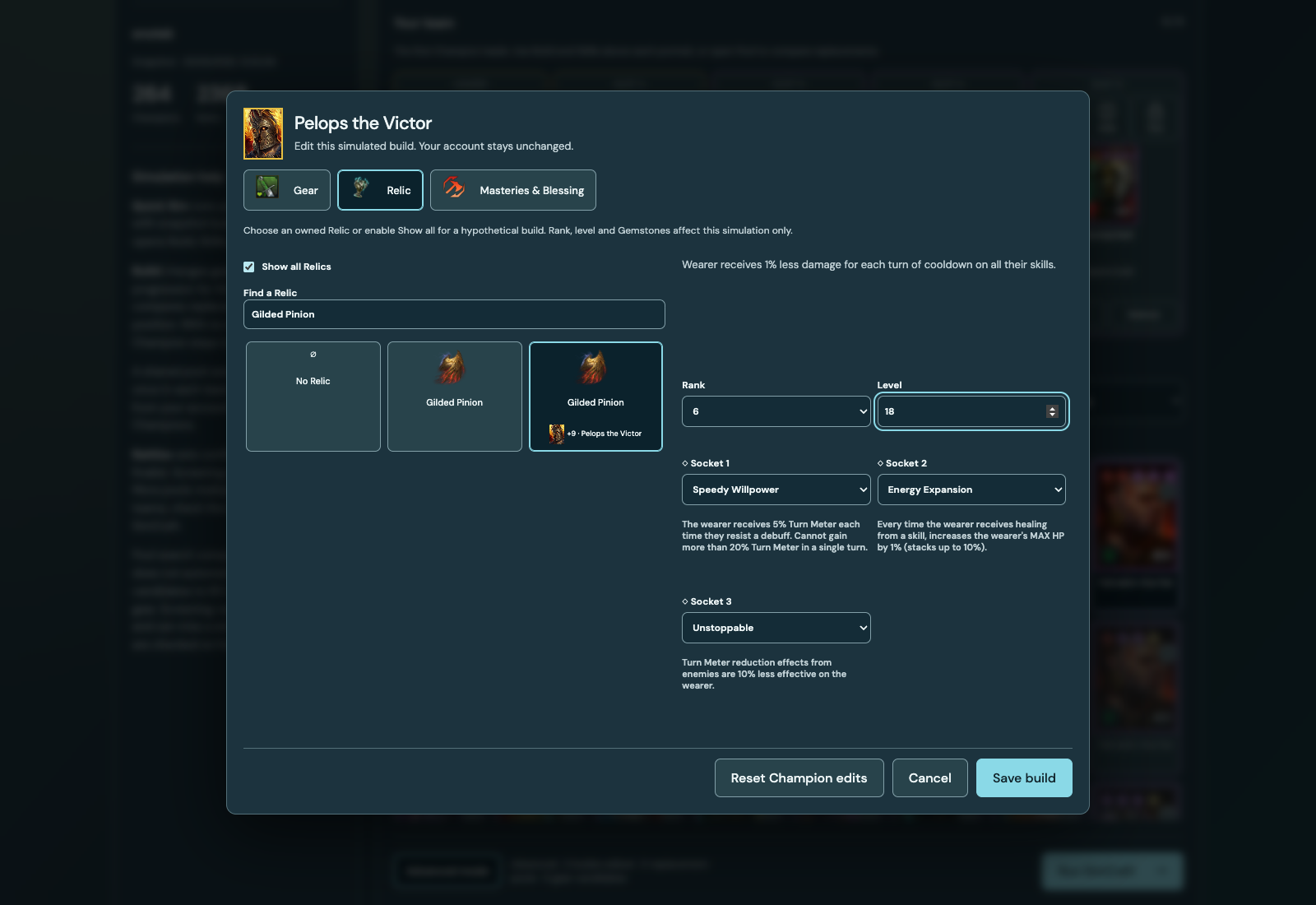
Try Relics and Gemstones
In Build, open the Relic editor. Start with an owned Relic or enable Show all Relics to try a hypothetical one. Adjust Rank, Level and compatible Gemstones, then save the simulated build.
Inspect the finalists
After a pool or gear comparison, inspect the ranked results. Expand a candidate to see the team, equipment and stats behind its score. Look at the number of battles as well as the ranking.
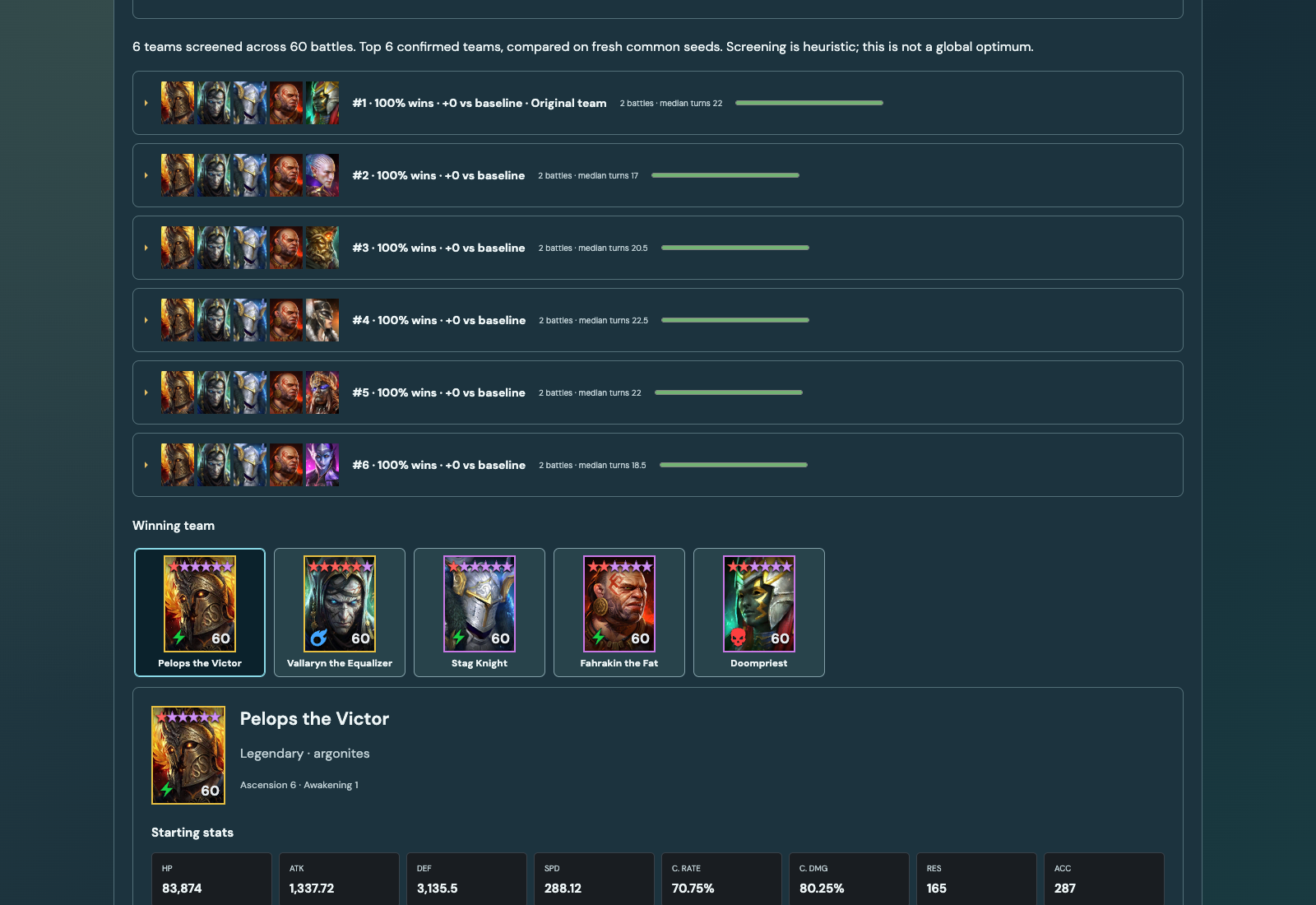
Press Run SimCraft once
Preparation, screening and time-budget checks happen automatically. The pool picker shows legal team counts and the current estimate. If the search is too large, reduce the pool or confirmation battles.
For an encounter without timing data, SimCraft first measures two battles. It may then ask you to narrow the selection. The compute budget is 15 minutes; queue time is separate, and stopping workers or saving the report can add a short interval.
Background tabs and connection loss
You can switch tabs while a run is in progress. A temporary network interruption does not cancel the calculation; the page reconnects when it can.
If the browser reports that you left the page, the server waits one minute before cancelling. Reloading or returning during that minute keeps the run alive. Browsers cannot reliably distinguish every tab closure from navigation or a lost connection. If no departure signal reaches the server, the run may finish within its compute budget. Use Cancel for an immediate stop.
Other changes
- Champion details show current equipped stats.
- Full reports include Champion portraits, builds and comparison details.
- Desktop rosters fit eight cards per row, with a compact mobile layout.
- Run diagnostics distinguish explicit cancellation, page departure and service shutdown.
The screenshots above show the live interface from September 21, except the labelled local results example.
Try Advanced mode